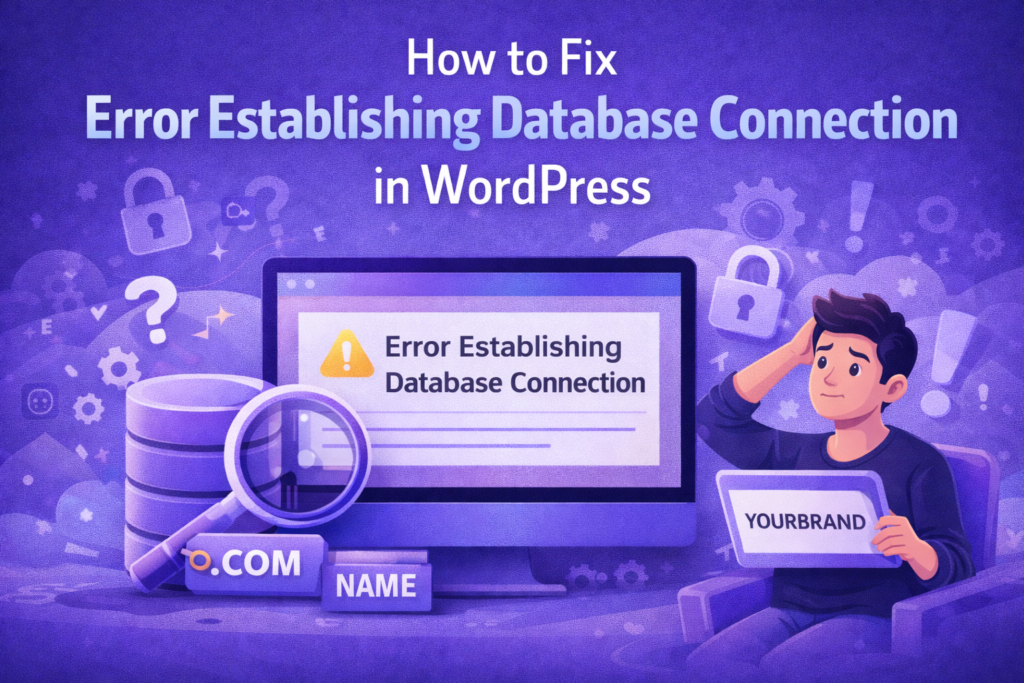
How to Fix Error Establishing Database Connection in WordPress
If you are using WordPress, chances are you may encounter the dreaded message:
“Error Establishing Database Connection”
This error can make your entire website inaccessible. It is one of the most common and frustrating issues faced by website owners.
The good news? It is completely fixable.
In this detailed guide, you will learn:
- What this error means
- Why it happens
- Step-by-step solutions to fix it
- How to prevent it in the future
📌 What Does “Error Establishing Database Connection” Mean?
WordPress uses a database (usually MySQL) to store all your content, settings, and user data.
This error occurs when WordPress is unable to connect to your database.
According to WordPress.org, this issue usually arises due to incorrect database credentials or server problems.
⚠️ Common Causes of This Error
Before fixing the issue, it’s important to understand why it happens:
- Incorrect database credentials
- Corrupted database
- Database server is down
- Hosting issues
- Corrupted WordPress files
- Exceeding server resource limits
🧠 Step-by-Step Fix (Beginner Friendly)
1. Check Your Database Credentials
Incorrect database details are the most common cause.
Open your wp-config.php file and check:
define('DB_NAME', 'your_database_name');
define('DB_USER', 'your_database_user');
define('DB_PASSWORD', 'your_database_password');
define('DB_HOST', 'localhost');
Make sure these details match your hosting database settings.
2. Repair Your Database
Sometimes the database becomes corrupted.
Add this line to wp-config.php:
define('WP_ALLOW_REPAIR', true);
Then visit:
yourwebsite.com/wp-admin/maint/repair.php
Click “Repair Database”.
3. Check If Database Server is Down
Your hosting server might be temporarily unavailable.
You can confirm this by contacting your hosting provider or checking their status page.
Reliable hosting significantly reduces such issues.
4. Fix Corrupted WordPress Files
Sometimes core files get corrupted.
Solution:
- Download fresh WordPress files from WordPress.org
- Replace wp-admin and wp-includes folders
5. Check Database Host
Most hosts use localhost, but some use custom hosts.
Examples:
- localhost
- 127.0.0.1
- mysql.yourhost.com
Check your hosting panel for correct value.
6. Check for High Traffic or Resource Limits
If your website exceeds server limits, database connection may fail.
This happens in:
- Shared hosting overload
- High traffic spikes
Solution:
- Upgrade hosting
- Optimize website performance
7. Contact Hosting Support
If none of the above works, contact your hosting provider.
They can check:
- Database status
- Server logs
- Account issues
🔍 Advanced Troubleshooting (For Developers)
Check MySQL Server
Use phpMyAdmin to verify database accessibility.
If it fails, the database server may be down.
—
Enable Debug Mode
define('WP_DEBUG', true);
This helps identify hidden errors.
—
Check Error Logs
Logs can reveal exact issues.
Refer to WordPress Debug Guide.
🛡️ How to Prevent This Error
- Use reliable hosting
- Keep backups
- Use optimized themes
- Limit heavy plugins
- Monitor server usage
💡 Pro Tip
Using a well-optimized WordPress setup with secure and lightweight themes reduces the chances of such errors significantly.
A complete managed setup can help beginners avoid technical issues entirely.
❌ Common Mistakes to Avoid
- Editing wp-config incorrectly
- Ignoring hosting limitations
- Using low-quality hosting
- Not maintaining backups
❓ FAQs
1. What causes database connection error in WordPress?
Incorrect credentials, server issues, or corrupted database.
2. Is this error serious?
Yes, it makes your website inaccessible.
3. Can I fix it without coding?
Yes, most solutions are beginner-friendly.
4. Does hosting affect this issue?
Yes, poor hosting increases the chances of errors.
5. How long does it take to fix?
Usually 10–30 minutes.
6. Will I lose my data?
No, unless the database is corrupted and not backed up.
7. Can plugins cause this issue?
Yes, heavy or faulty plugins can contribute.
8. Should I reinstall WordPress?
Only if files are corrupted.
9. How to prevent this error?
Use good hosting, backups, and optimized setup.
10. Is this error common?
Yes, it is one of the most common WordPress errors.
Final Thoughts
The “Error Establishing Database Connection” may look serious, but it is usually easy to fix once you understand the cause.
By following this guide, you can quickly diagnose and resolve the issue without panic.
Prevention is always better than cure — invest in a reliable hosting environment and optimized website setup.